
Clip into your pocket in 1 second!
Your Smart Pocket for Everything
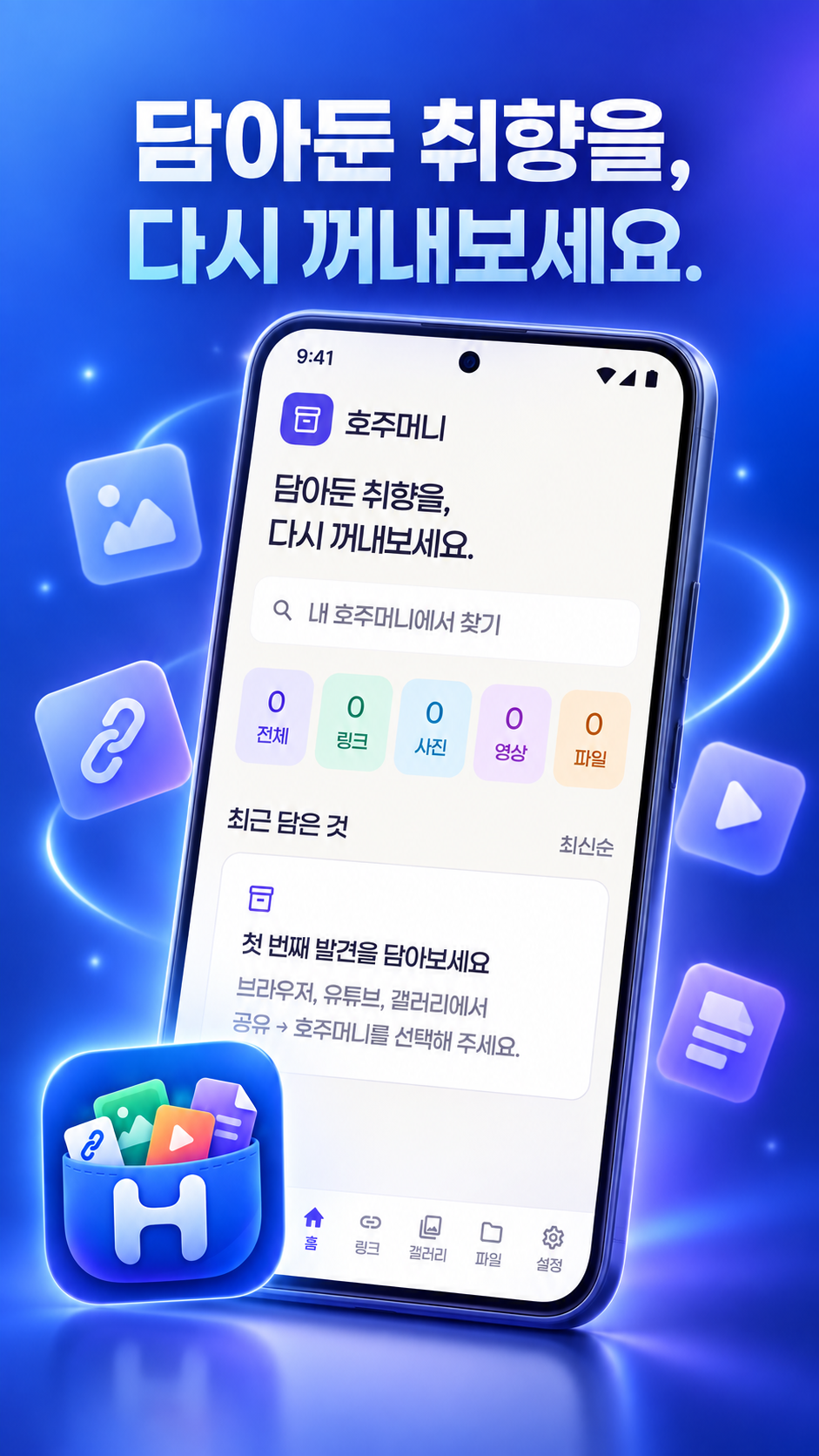
Save from web browsers, YouTube, Instagram, and Gallery with just one tap.
Organize effortlessly with tags, instant search, and safe private Google Drive backup.
App Preview
Click any screenshot to view in full resolution.





Clip in 1 second on PC too!
Hojumeoni Chrome Side Panel Extension
Instantly access articles saved on your phone, and clip new web discoveries directly into your vault from the browser's right side panel with one click.
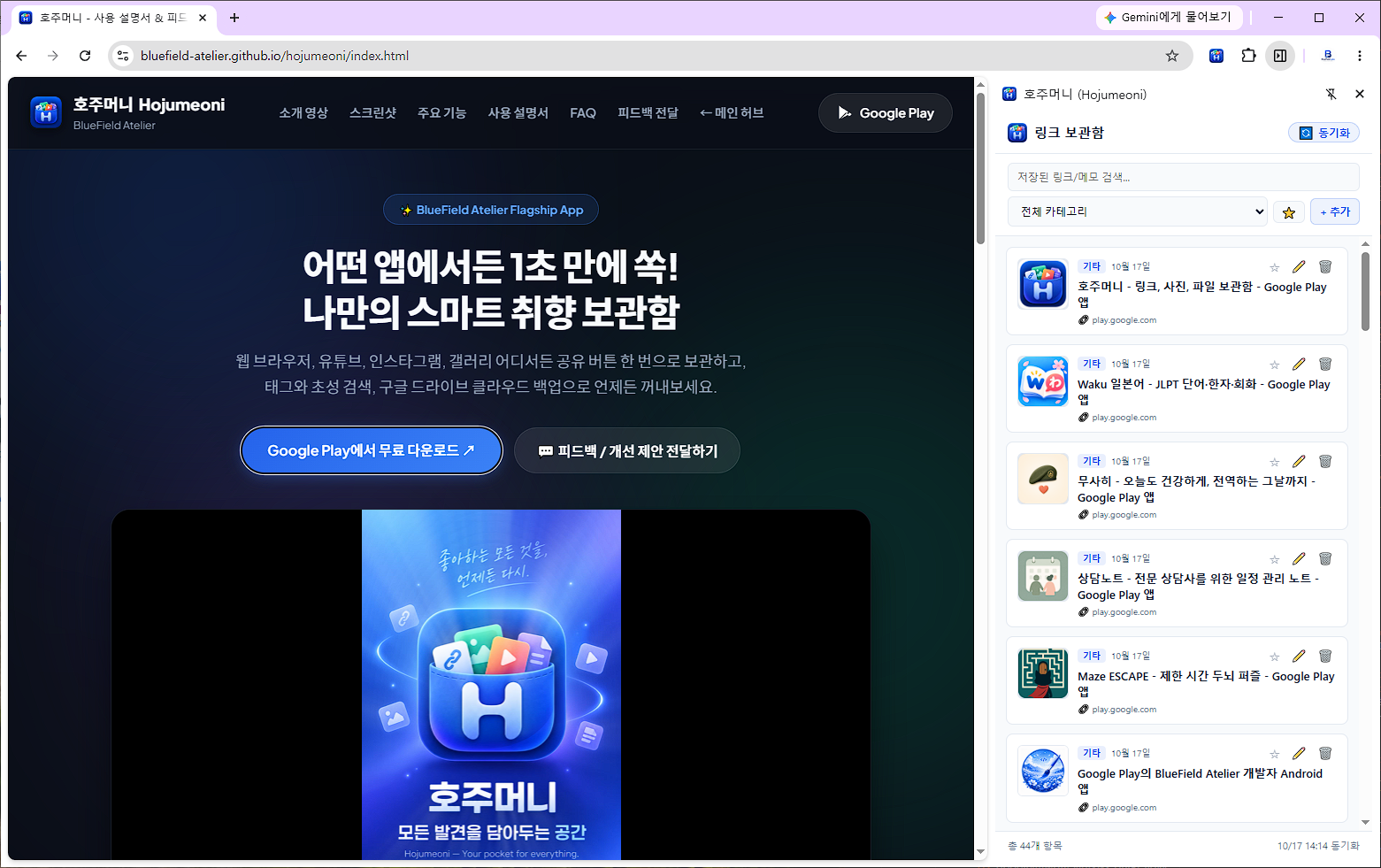
Side Panel Integration
Keep your pocket open on the right edge of your browser while browsing without covering active tabs.
One-Click Scraping
Save current page URL, title, and your notes instantly into your designated category with a single click.
Real-time Cloud Sync
Automatic sync between your mobile Hojumeoni app and desktop extension via Google Drive.
💡 Compatible with all Chromium-based browsers including Google Chrome, Microsoft Edge, Naver Whale, and Brave with full feature support.
🌐 PC Browser Installation & Search Guide
Search for 'Hojumeoni' in your desktop browser store to install in seconds.
- 1 Open Chrome Web Store and search for Hojumeoni (or click button above).
- 2 Select Hojumeoni and click [Add to Chrome].
- 3 Click the puzzle (🧩) icon in the top-right and click the Pin (📌) icon next to Hojumeoni.
- 4 Click the Side Panel (◨) icon or toolbar pin to keep your vault open while browsing!
- 1 In Edge, click […] Menu ➜ [Extensions] ➜ [Manage extensions].
- 2 Turn on 'Allow extensions from other stores' on the bottom left, or click 'Get extensions from Chrome Web Store'.
- 3 Search for Hojumeoni in the store and click [Get / Add to Chrome].
- 4 In the extensions menu, click the Eye (👁️) icon to show Hojumeoni on the Edge toolbar or sidebar.
- 1 In Whale, open […] Menu ➜ [Extensions] ➜ [Whale / Chrome Web Store].
- 2 Search for Hojumeoni and click [Add to Chrome].
- 3 Click the '+' button at the bottom of Whale's right sidebar and add Hojumeoni to the sidebar.
- 4 Enjoy a distraction-free sidebar dual view that never overlaps with active web pages!
- 1 In Brave, navigate to the Chrome Web Store.
- 2 Search for Hojumeoni and click [Add to Chrome].
- 3 Click the puzzle (🧩) icon in the URL bar and Pin (📌) Hojumeoni.
- 4 Toggle Brave's Side Panel icon to keep your archive open while browsing.
Connect the same Google Account in the desktop extension settings and mobile Hojumeoni app. Articles clipped on PC appear on your phone instantly, and vice versa!
3 Reasons Why Hojumeoni Stands Out
1-Second Quick Scraping (Share Sheet)
No need to open the app! Tap 'Share' ➜ 'Hojumeoni' from any web browser or YouTube video to save it into your drawer immediately.
Tags & Lightning Search
Even with hundreds of items, finding what you need is instant. Organize by folders and tags, or use lightning-fast search filters.
Google Drive Cloud Backup
Switching phones or formatting? Never lose your curated archive. Everything backs up and restores securely to your personal Google Drive.
How to Get the Most Out of Hojumeoni
Tap [Share] in Any App
When you encounter an interesting link, article, or photo in Chrome, YouTube, Instagram, or Gallery, tap the system Share icon.
Save to Pocket in a Flash
A compact saving sheet appears. Edit the title or assign tags (#Recipes, #Tech, etc.), and tap [Save]. Done in 1 second!
Find in Seconds with Fast Search
Type keywords or select a tag pill in the top search bar to filter your library in real-time.
Secure Cloud Backup on Google Drive
Link your Google account under [Settings] ➜ [Cloud Backup] to safeguard your entire library with a single tap.
FAQ
Use the in-app Direct Add (+) button with auto-clipboard detection!
- Copy the URL from any restricted browser or app, then open Hojumeoni.
- Tap the (+) button in Hojumeoni to automatically recognize the copied URL and save it with tags immediately.
Tip: Scroll to the end of your system share sheet, tap 'More' or 'Edit', and pin Hojumeoni to the top.
Yes! Hojumeoni fully supports all Chromium-based desktop browsers including Microsoft Edge, Naver Whale, and Brave.
- On mobile now? Open your PC browser later and search for 'Hojumeoni' in the extension store.
- Microsoft Edge: Go to Menu (···) ➜ Extensions ➜ Allow extensions from other stores, then search and add Hojumeoni.
- Naver Whale: Click '+' at the bottom of Whale's right sidebar to pin Hojumeoni for dual view.
Contact the Hojumeoni Team Directly
Encountered a bug, have an idea for a new feature, or want to say hello?
Your message is sent securely to tedd.devteam@gmail.com / bluefield.works@gmail.com.